When an employee books holiday, Shyftr works out two things:
- their entitlement: roughly how many hours of holiday they get in a year, and how many are left
- the hours for each holiday you approve: this is the figure that goes to payroll
This page explains where those numbers come from, so you can check them and explain them to your staff.
These figures are estimates. Shyftr works them out from the shift and pay rate information in the system. Shyftr isn't a certified payroll processor. A qualified payroll professional or accountant must check all holiday hours and holiday pay before anyone is paid.
Where you'll see the figures
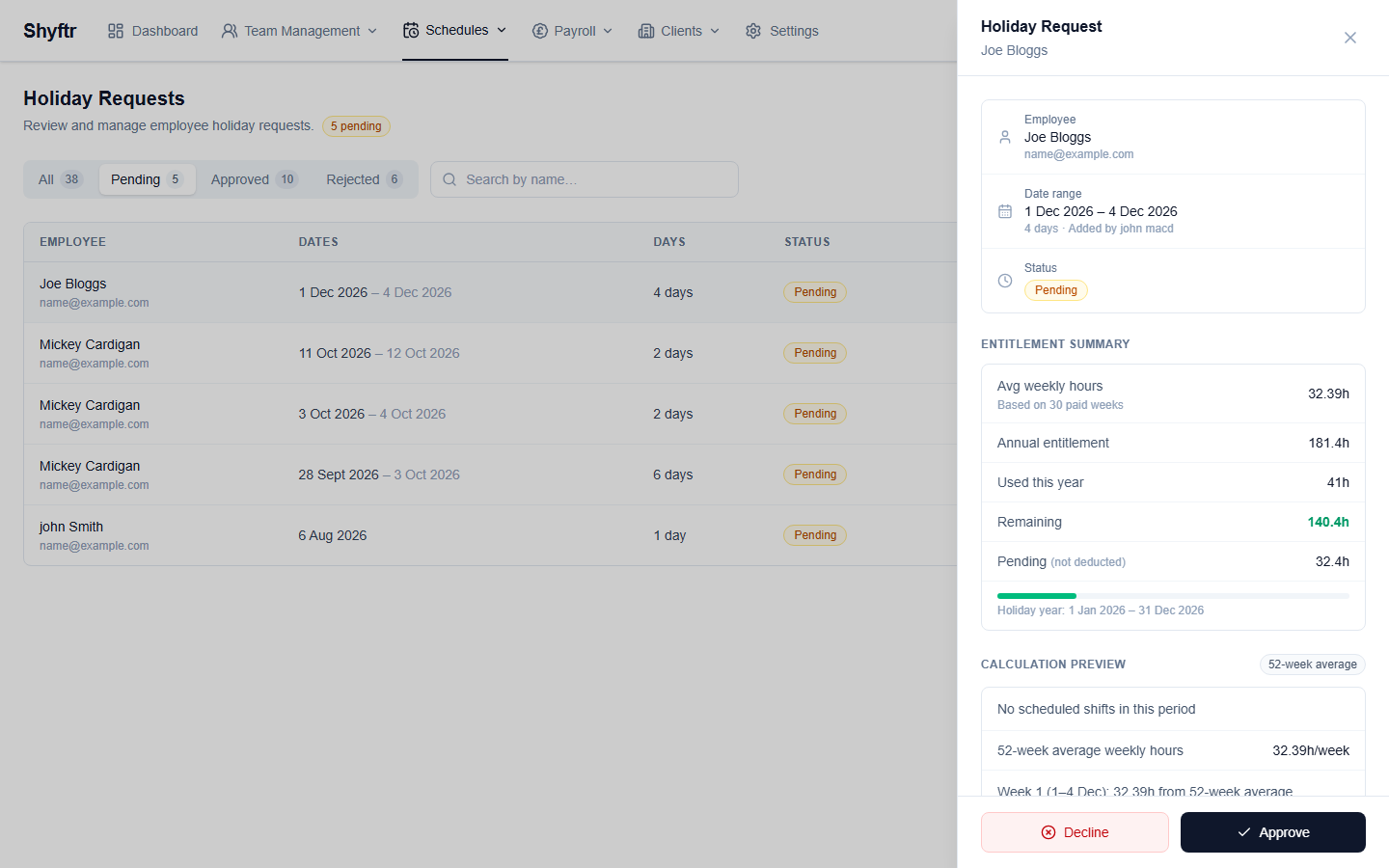
Go to Schedules → Holidays and click a request. A panel opens with two sections:
- Entitlement Summary: the employee's yearly entitlement, how much they've used, what's left and how much is in pending requests.
- Calculation Preview: how many hours this holiday will be recorded as if you approve it, which method Shyftr will use, and the hourly rate the holiday will be paid at.
The preview uses exactly the same calculation as approval, so the figures you see are the figures that are saved. If anything needs your attention, such as an employee with no shift history, an amber Check before approving notice appears under the preview.
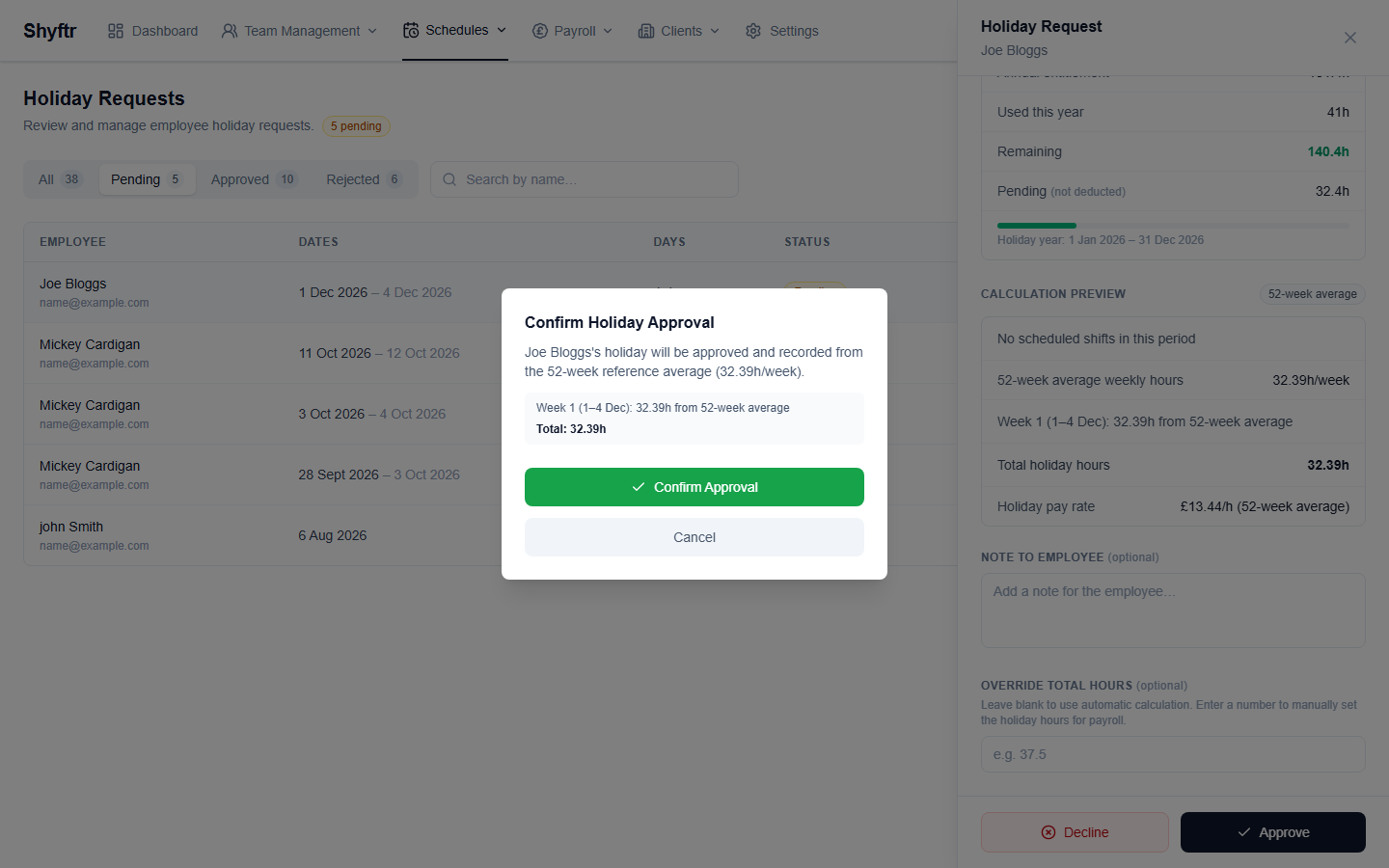
Nothing is recorded until you click Approve and then Confirm Approval.
Entitlement
UK workers are entitled to 5.6 weeks' paid holiday a year. Shyftr estimates this in hours:
Annual entitlement = 5.6 × average weekly hours
The average weekly hours figure is the same 52-week average that Shyftr uses to work out the hours for a holiday (see 52-week average below):
- Shyftr looks back up to 104 weeks and takes the most recent 52 weeks in which the employee had paid work. Weeks with no paid work, such as a week off sick or a week on holiday, are skipped rather than counted as zero.
- It averages the scheduled length of the shifts that counted over those weeks.
Some things to know about this average:
- If the employee has fewer than 52 paid weeks behind them, the average is taken over the weeks they do have. A new starter with three paid weeks is averaged over three, and the panel says Based on 3 paid weeks under the figure. The note disappears once they have 52.
- Only shifts that actually happened count. Shifts marked as holiday, sickness or unpaid absence are never counted. See What counts towards the average.
- It uses the scheduled start and end times, not the times the employee actually clocked in and out.
- In the request panel, the average is worked out as at the first day of the holiday, so the Entitlement Summary and the Calculation Preview always show the same figure. The rest of the summary is for the holiday year that first day falls in (see The holiday year).
The panel also shows:
- Used this year: the hours of every holiday request approved for dates in the holiday year the holiday falls in, plus the length of any shifts you've marked Absent (Paid – Holiday) by hand that don't belong to an approved request. A shift that is part of an approved holiday is only ever counted once. Approving a request adds its hours to this figure straight away; cancelling the holiday takes them off again.
- Remaining: entitlement minus used, never less than zero. It turns amber when less than a quarter is left and red when none is left.
- Pending (not deducted): the hours the employee's pending requests would be recorded as if you approved them today, for dates in the holiday year the holiday falls in. It's there so you can see what's already been asked for. It isn't taken off Remaining until a request is approved.
If the employee has no paid weeks to average, you'll see No shift history found — entitlement cannot be calculated.
Employees see the same calculation in their own portal, worked out as at today rather than the holiday's first day, so the average and entitlement can differ from the panel's for a holiday a long way off. Used, Remaining and Pending match whenever the two are looking at the same holiday year. The mobile app shows the same figures as the employee portal.
The holiday year
The holiday year starts on the 1st of the month set in Settings → Company Profile → Holiday Year Start Month, and lasts 12 months. If nobody has changed it, it starts in April. The request panel's figures are for the holiday year the holiday's first day falls in (for a holiday booked after the next year starts, that's next year's), and the dates of that year are shown under the progress bar. The employee portal always shows the current holiday year.

How the hours for a holiday are worked out
Two methods apply to the whole holiday:
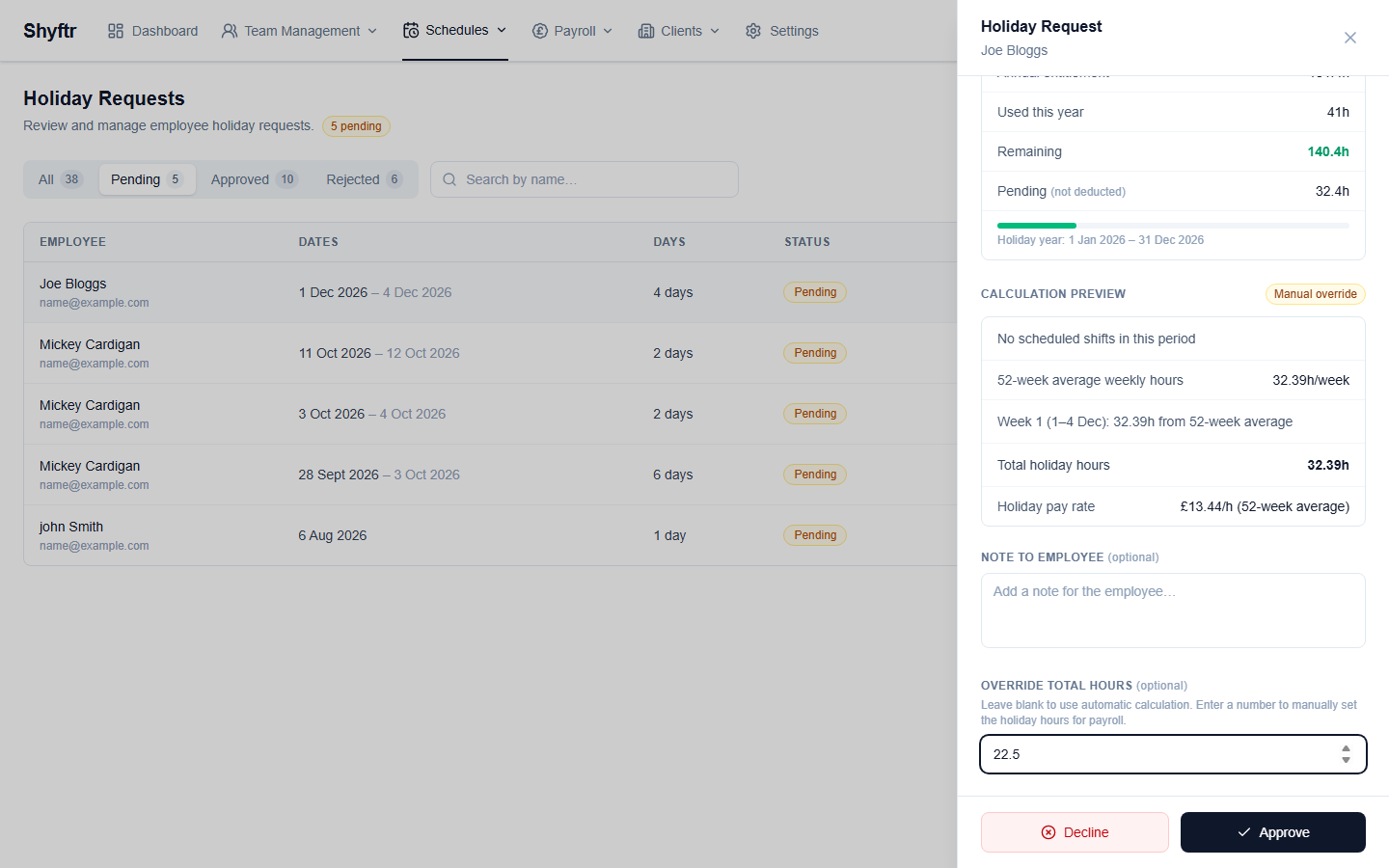
- Manual override: you typed a number in Override Total Hours.
- Salaried: the employee has an annual salary on their profile.
Otherwise, Shyftr splits the holiday into weeks of 7 days, counted from its first day (the last week may be shorter), and decides each week separately:
- From scheduled shifts: the week has one or more of the employee's shifts on the schedule.
- 52-week average: the week has no shifts, usually because the rota for those dates hasn't been done yet.
So a two-week holiday where only the first week's rota is done uses the scheduled shifts for week 1 and the 52-week average for week 2. Neither week is left at 0 hours.
The method is shown as a badge next to Calculation Preview: From scheduled shifts or 52-week average when every week used the same method, and Mixed when some weeks used each. The preview and the confirmation list each week, how many hours it gives and where they came from, followed by the total. For example:
- Week 1 (12–18 Oct): 40h from 5 scheduled shifts
- Week 2 (19–25 Oct): 30.29h from 52-week average
Shyftr keeps this week-by-week breakdown with the approved holiday, so the figures can be checked later.
From scheduled shifts
Shyftr adds up the scheduled length of every shift the employee has that starts on one of the holiday dates (UK time). The preview lists each shift and its hours.
Each shift's full hours are recorded against the day it starts, even if it runs past midnight. A night shift that starts on the last day of the holiday is included in full.
A night shift that starts the evening before the holiday isn't part of the holiday, even if it finishes on the first holiday day. The employee is expected to work it, it stays on the schedule, and it's paid as a normal shift.
A week that has any shifts uses only those shifts. If the rota for a week is only partly done, for example one shift scheduled when the employee normally works four days, that week gives just the one shift's hours. Finish the rota before approving, or use Override Total Hours.
52-week average
- Shyftr looks back up to 104 weeks before the week the holiday starts. The week the holiday starts isn't included.
- It takes the most recent 52 weeks in which the employee had paid work. Weeks with no paid work are skipped completely.
- It works out their average weekly hours and the average number of days a week they worked, rounded to a whole number of days.
- Hours per day = average weekly hours ÷ days worked per week.
- Each week of the holiday that uses this method is worth hours per day × the number of days they'd normally work in it. A week can never be worth more than one normal week.
- Each week's hours are spread evenly across all the days in that week, so a holiday that crosses into a new pay period is split fairly.
This means booking a whole week off, weekends included, costs exactly one normal week. For example, someone who works 36 hours over 4 days gets 36 hours whether they book Monday to Friday or Monday to Sunday. Booking two full weeks gives 72 hours. See the worked example.
If the employee has no past shifts, there's nothing to average and those weeks would be recorded as 0 hours. The preview warns you: No shift history found — 0 hours recorded. Use the manual override. For a Mixed holiday, the warning names the weeks affected. Enter the hours yourself using Override Total Hours before approving.
Salaried
For employees with an annual salary, Shyftr uses the same 52-week average to estimate the hours. These hours are for information only. Salaried pay isn't changed by holiday, and the pay run shows the holiday hours without adding any pay.
Manual override
If you don't agree with the calculated figure, you can set it yourself:
- In the request panel, type the total number of hours in Override Total Hours. The badge changes to Manual override.
- Click Approve. The confirmation tells you the hours will be manually set for payroll.
- Click Confirm Approval.
Your total replaces the calculation for the whole holiday, including any weeks with scheduled shifts. The shifts are still freed for cover. Shyftr spreads your total across the holiday in the same way as the 52-week average: in 7-day weeks, weighted by how many days the employee normally works in each week, then evenly across the days of each week. For example, 30 hours over a Monday-to-Sunday request is recorded as about 4.3 hours a day. If the employee has no shift history, your total is split evenly across every calendar day. This matters when the holiday spans two pay periods.
What counts towards the average
The same 52-week average is used for entitlement and for the hours of a holiday. It counts:
- shifts that have finished, and
- that actually happened: the employee clocked out, the shift is marked Worked, or the shift doesn't require a clock-in (for example office staff who never clock in)
It doesn't count:
- shifts that required a clock-in that nobody attended (no-shows), even if they were never marked as absent
- shifts marked Absent (Paid – Sick)
- shifts marked Absent (Unpaid)
- shifts marked Absent (Paid – Holiday)
- shifts that were freed for cover by an earlier holiday, because they no longer belong to the employee
A week with no counted shifts is skipped and the next earlier week is used instead. For example, this happens with a week off sick or, unless your company has chosen otherwise (see Company settings), a week on holiday. A week with some work and some sickness isn't skipped. Only the hours worked that week count, which lowers the average a little.
The average uses scheduled hours, from the shift's start time to its end time. The times the employee actually clocked in and out aren't used.
Whether a week with some sickness should count in full is a payroll policy decision. For now it counts, with only the hours worked. This may become a company setting later.
Company settings
Two settings on Payroll → Overview, under Holiday pay settings, change how the average and the holiday pay rate are worked out. Anyone who can edit payroll can change them.
- Bank holiday region decides which bank holidays attract the bank holiday premium: England and Wales, Scotland or Northern Ireland. It affects the rate locked on new shifts, the holiday pay rate and pay runs. Shifts already on the schedule keep the rate they were given.
- Count paid holiday weeks in the 52-week average. Off is the usual choice for staff with normal hours: a week whose only pay was holiday pay is skipped, like a week off sick, so the average isn't pulled down by time off. On may apply to zero-hours contracts: a week on paid holiday counts as a normal week, with the holiday's recorded hours as its hours and the holiday's rate as its pay. Weeks off sick and unpaid weeks are always skipped whichever you choose. Ask your payroll adviser which reading applies to your contracts.
What happens to shifts during a holiday
When you approve a holiday, every shift the employee has that starts on one of the holiday dates is:
- unassigned from the employee, and
- marked Open, so it shows as ⚡ Open on the schedule and appears in the unassigned banner.
You can then drag another staff member onto each shift to cover it. See Building the schedule.
The freed shifts aren't marked as holiday, and they don't count towards the employee's pay for those days. Their holiday is paid from the holiday hours instead.
Shifts in the holiday that have already happened, because the employee clocked out of them or they ended without needing a clock-in, aren't freed and aren't counted in the holiday hours: the employee was paid for working them. The preview tells you how many are excluded. If the employee didn't actually work them, mark them absent before approving. A week whose only shifts have already happened uses the 52-week average instead.
If you decline a request, nothing on the schedule changes.
To take only some days off an approved holiday, see Changing an approved holiday.
If you later cancel an approved holiday, Shyftr gives the freed shifts back to the original employee as normal scheduled shifts, as long as each one is still open and doesn't overlap another shift of theirs. Shifts you've already given to someone else as cover stay with them, and a freed shift that would clash with one of the employee's shifts stays open. After cancelling, Shyftr tells you how many shifts came back and how many didn't. If the holiday was already included in a finalised pay run, Shyftr creates a payroll alert so the pay can be adjusted in the next run; if a returned shift had already been clawed back, a second alert says the employee is owed for it again.
Pay runs pay scheduled hours for the whole period, including shifts not yet worked, so a shift freed by a holiday may already have been paid. Shyftr flags it, and the next pay run takes that pay back and pays the holiday for the day instead. Changes after export are recovered in the next run; see How pay runs work.
Changing an approved holiday
You can take days off an approved holiday without cancelling the rest of it. There are two ways.
Scheduling a shift over the holiday. If you create a shift for an employee, or drag them onto a shift, on a day they have approved holiday, Shyftr asks for a reason first and tells you what will happen, for example: This will reduce Joe's holiday (11–12 Nov) by 1 day. 1 day stays approved. Joe's original shift on 11 Nov stays open for cover. When you confirm, that one day comes off the holiday and the rest stays approved. If it was the last day left, the message says the holiday will be cancelled, and it is. The shift you're saving is the plan for that day, so the employee's original shift on it (freed when the holiday was approved) isn't given back: it stays open for someone else to cover, or stays with whoever is already covering it.
Remove days. On Schedules → Holidays, an approved request has a Remove days button. Tick the days to take off and give a reason (at least 10 characters). Each day lists its freed shifts and what will happen to them. Before you confirm, Shyftr shows what's left, for example Removing 1 day (7.5h). 4 days (30h) stay approved. 1 shift will be returned to Joe., followed by any shift that won't come back, marked left open: overlaps an existing shift or assigned to cover. You need the permission to edit staff.
Either way:
- The removed days' hours come off the holiday, so the employee's Used this year goes down by the same amount. If you remove the first or last day, the holiday's dates move in to match. If you remove a day in the middle, the dates stay as they are, but that day is no longer holiday: you can schedule the employee on it without a warning.
- With Remove days, a freed shift on a removed day goes back to the employee only if it's still open and they have no other shift at an overlapping time. A shift on the same day that doesn't overlap, such as an evening shift or the second half of a split shift, doesn't stop it coming back. A freed shift that overlaps one of their shifts stays open, and one already given to someone else as cover stays with them. Freed shifts on the days that are still holiday stay as they are.
- If you remove every day, the holiday is cancelled as if you had used Cancel Holiday, with your reason as the note.
- The request shows how many days were removed, for example 2 days (1 removed), and the review panel lists each removal with its reason. The employee sees the same on their portal.
- Pay. If the holiday hasn't been paid yet, the next pay run simply pays fewer holiday hours. If a removed day had already been paid in a finalised pay run, the next pay run takes that holiday pay back automatically, at the holiday's rate, as a line called Clawback: Holiday removed, listed with the run's other adjustments. Until then it's counted in Pending Clawbacks on Payroll → Overview. You don't need to add a manual adjustment and no payroll alert is raised. If a draft pay run already covers the day, delete and recreate it so it stops paying the day.
Holidays that span two pay periods
Shyftr records holiday hours day by day, not as one total. When a pay run is created, it includes only the holiday days that fall inside that pay period. A holiday that crosses the end of a pay period is therefore split between the two pay runs automatically.
How the hours are spread across the days depends on the method:
- From scheduled shifts: each shift's hours go on the day that shift starts.
- 52-week average and salaried: each week's hours are spread evenly across the days in that week.
- Mixed: each week follows its own method, as above.
- Manual override: spread like the 52-week average, using your total.
Holiday pay rate
In the pay run, holiday pay is estimated as holiday hours × the holiday's hourly rate. Shyftr saves the rate when you approve the holiday, whichever method gave the hours:
- 52-week average: the employee's average pay per hour over the same weeks used for the 52-week average. Weekend and bank holiday premiums they earned are included once, with bank holidays taken from your company's region (see Company settings). Only shifts with a known pay rate are used: a shift with no locked rate and no pay role (for example on a client whose pay rates were removed) still counts towards the hours and days worked, but not towards the rate. If more than a quarter of the employee's recent hours have no pay rate, you'll see X% of this employee's recent hours have no pay rate recorded, so the holiday pay rate may be inaccurate. Check the rate with payroll before approving.
- From this holiday's shifts: used when none of the employee's past shifts has a known pay rate, for example a new starter. It's the average rate of the shifts the holiday frees.
- None: if neither is available, no rate is saved. You'll see No hourly rate available — holiday pay must be set manually, and payroll must add the holiday pay by hand.
The rate and where it came from are shown in the preview as Holiday pay rate. If an employee has more than one holiday in the same pay period, each holiday is paid at its own rate. Salaried employees' holiday hours are shown for information only and don't add pay.
After you approve
If anything needs checking after approval, the panel stays open with an amber notice listing it, for example a shift that couldn't be freed or a holiday with no hourly rate. Click Done to close the panel. If there's nothing to check, the panel closes straight away.
Adding a holiday for an employee
Employees normally request their own holiday from the portal or the app. When a holiday was agreed outside Shyftr, or taken before it was put in the system, you can add it yourself: on Schedules → Holidays click New request, choose the employee, enter the dates (dates in the past are allowed here, unlike an employee's own request) and an optional note. You need the permission to edit schedules.
- Leave Approve now unticked to add the request as pending. It then appears in the list and is reviewed like any other.
- Tick Approve now to add and approve it in one step. Shyftr shows the same calculation preview and Check before approving notice as the review panel, and nothing is recorded until you confirm. You need the permission to edit staff for this.
Shifts in the range that have already been worked are left as they are and aren't counted as holiday, exactly as when approving a request the employee made (see What happens to shifts during a holiday). If the employee didn't actually work one of them, mark it absent before adding the holiday.
The employee sees the request on their portal and in the app with Added by and your name, and you'll see the same in the list and the review panel.
Worked example
Sam is paid by the hour. For the past year, Sam has worked four 9-hour shifts a week, which is 36 hours a week, and clocked out of every one.
Entitlement
- Sam had paid work in every one of the last 52 weeks, so all 52 count.
- Average weekly hours: 36.
- Annual entitlement: 36 × 5.6 = 201.6 hours.
If Sam had only started 3 weeks ago, the average would be taken over those 3 weeks instead, and the panel would say Based on 3 paid weeks.
Sam asks for Monday 12 to Friday 16 October off.
If Sam's shifts are already on the schedule (Monday, Tuesday, Thursday and Friday, 9 hours each):
- Method: From scheduled shifts.
- Holiday hours: 4 × 9 = 36 hours, recorded as 9 hours on Monday, Tuesday, Thursday and Friday.
- The four shifts are freed as open shifts for cover.
If Sam's shifts for that week haven't been scheduled yet:
- Method: 52-week average.
- Average weekly hours: 36. Days worked per week: 4.
- Hours per day: 36 ÷ 4 = 9.
- The request is one block of 5 days. Sam would normally work 4 of them, so it's worth 4 × 9 = 36 hours, the same as a normal week.
- The 36 hours are spread over the 5 days: 7.2 hours a day.
If Sam booked Monday 12 to Sunday 18 October instead, it would still be 36 hours, spread over 7 days.
Holiday pay: Sam's 52-week average rate is shown in the preview, for example £12.50/h. The pay run adds 36 × £12.50 = £450 of holiday pay.
If the pay period ends on Wednesday 14 October:
- From scheduled shifts: 18 hours (Monday and Tuesday) go in the first pay run and 18 hours (Thursday and Friday) in the next.
- 52-week average: 21.6 hours (Monday to Wednesday, 3 × 7.2) go in the first pay run and 14.4 hours (Thursday and Friday) in the next.
If Sam books two weeks, Monday 12 to Sunday 25 October, and only the first week's rota is done:
- Method: Mixed.
- Week 1 (12–18 Oct): 36h from 4 scheduled shifts, recorded as 9 hours on each shift's day. The four shifts are freed for cover.
- Week 2 (19–25 Oct): 36h from the 52-week average, spread over the 7 days (about 5.14 hours a day).
- Total: 72 hours.
Common questions
Why does the preview say "Mixed"? Some weeks of the holiday have scheduled shifts and some don't, so each week used a different method. The preview lists every week and where its hours came from.
Why is one week lower than the employee's normal week? If a week has any shifts on the schedule, only those shifts count. A partly done rota gives a partial week. Finish the rota for that week before approving, or use Override Total Hours.
Why is the holiday figure different from the employee's normal week? With the 52-week average, a full week off is always worth one normal week. A shorter request is worth fewer hours: one normal day for each day booked, up to the number of days they normally work. If the employee's pattern has changed recently, the average may not reflect it. Set the hours yourself with Override Total Hours.
Why hasn't "Remaining" gone down when an employee sends a request? A request only counts once it's approved. Until then its hours are shown in Pending (not deducted), so you can see what's been asked for without it changing the figures. Approve the request and Used this year goes up and Remaining goes down by its hours.
Why does "Used this year" include hours for days with no shifts on the schedule? Approved holidays are counted from their recorded hours, not from shifts. A holiday worked out with the 52-week average has hours even where no rota was done. Shifts you've marked Absent (Paid – Holiday) by hand are added on top, unless they belong to an approved holiday, in which case they're already included.
Does sickness lower the average? Weeks spent entirely off sick are skipped, for entitlement and holiday hours alike. A week with some work and some sickness counts, with only the hours worked, which lowers the average a little.
Does a week on holiday lower the average? Not with the usual setting: a week whose only pay was holiday pay is skipped, like a sick week. If your company has turned on Count paid holiday weeks in the 52-week average (Payroll → Overview), the week counts with the holiday's recorded hours and rate instead. See Company settings.
Are overtime and late finishes included? Only if they're on the schedule. The average uses scheduled start and end times, not clock-in and clock-out times.
Can I change the hours after approving? Not from the request. Cancel the holiday and ask the employee to request it again, or ask payroll to adjust the pay run.
Do I still need payroll to check these figures? Yes. Holiday figures in Shyftr are estimates. They must be checked by a qualified payroll professional or accountant before anyone is paid.