The dashboard is the first page after you sign in. Its tiles are live figures for your company; click one to go to the page behind it.
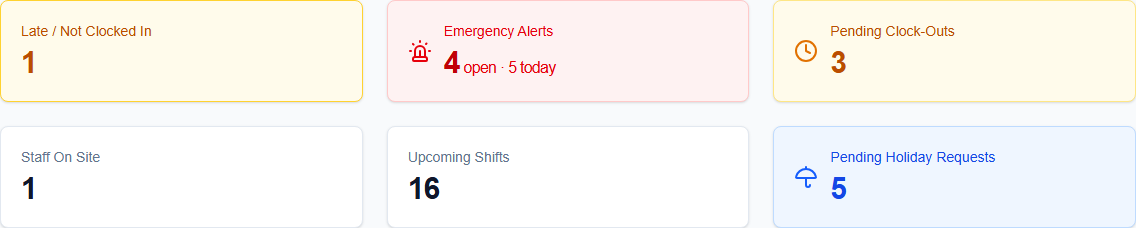
The top row is what needs action now: Late / Not Clocked In, Emergency Alerts and Pending Clock-Outs. The bottom row is for context: Staff On Site, Upcoming Shifts and Pending Holiday Requests. A tile is coloured while it has something to deal with and white when it's at zero.
Early clock-outs aren't counted on a tile. They're listed under Requires Review in the Live Ops panel below the tiles.
Emergency Alerts
The tile reads N open · M today.
- Open is the number of alerts nobody has dealt with yet, whatever day they were raised. A missed check-in alert is dealt with when the check-in it was raised for is made, either by the employee checking in late or by a manager using Resolve Missed Check-In on the Live Ops panel. Any other alert, such as a no-show at the start of a shift, stays open until a manager clears it on the Alerts page.
- Today is how many alerts were raised today (UK time), whether or not they have been dealt with.
The tile is red only while something is open. A new alert arriving while you have the dashboard open adds one to both figures and plays a short tone.
Click the tile to open Dashboard → Alerts, where each alert shows who it concerns, when it was raised and, for a missed check-in that has since been made, when and by whom. Clearing alerts there removes them from both figures.